


How to Start Vibe Coding
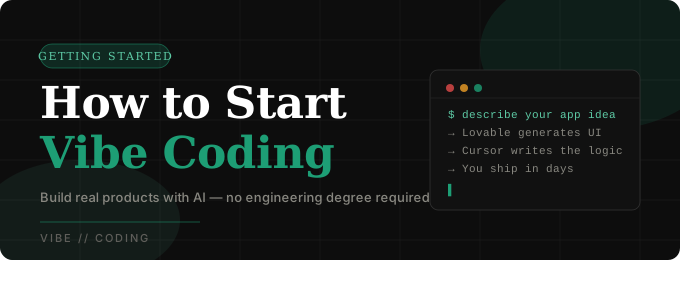
Vibe coding is what happens when you stop writing code yourself and start describing what you want to an AI that writes it for you. No CS degree. No bootcamp. Just you, a good prompt, and a tool that can actually execute.
If that sounds too good to be true, it’s not—but it’s not magic either. There’s a right way to get started, and most beginners skip a few steps that would save them hours of frustration. This guide walks you through the whole thing from zero.
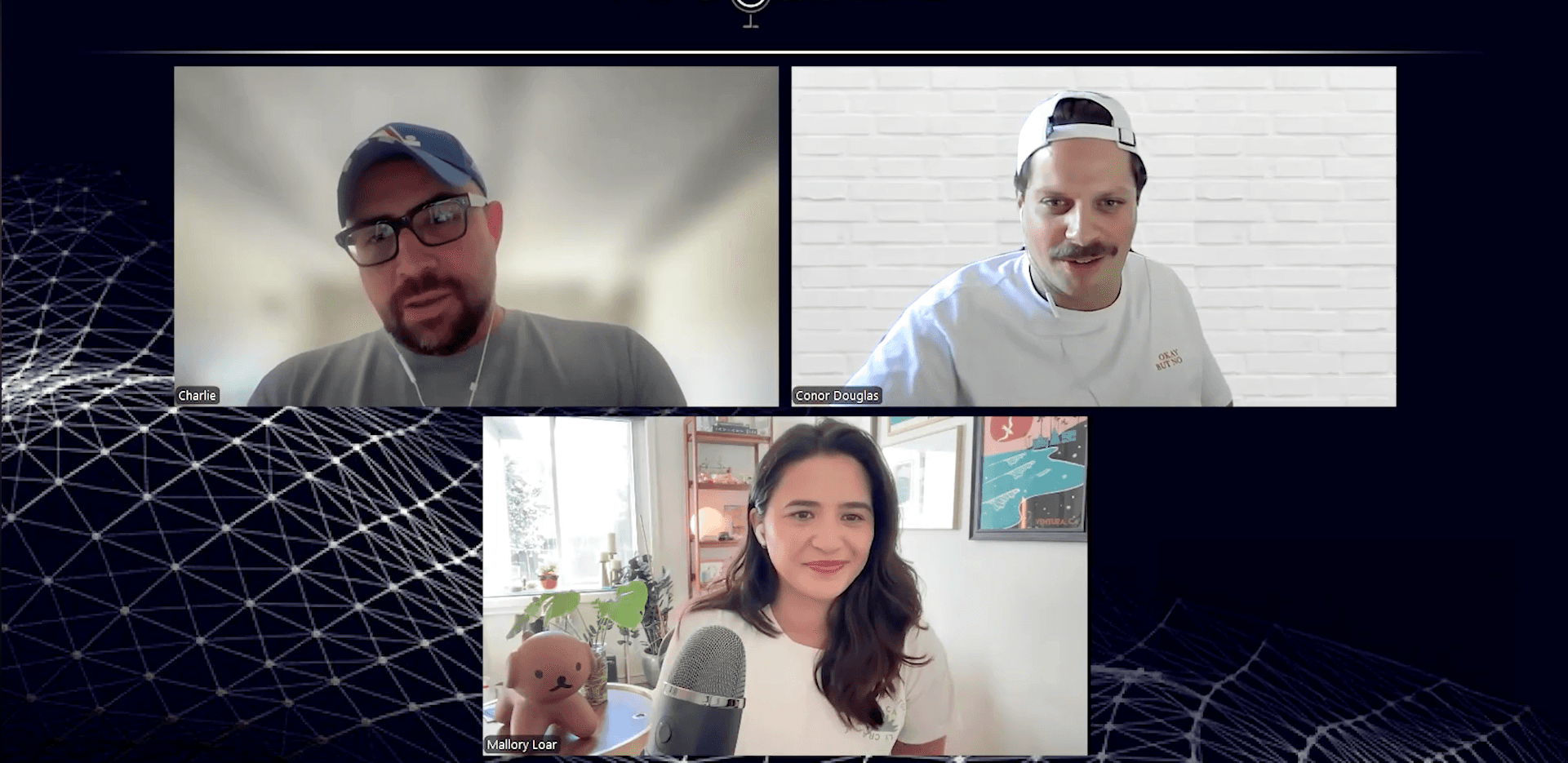
We’ve also covered a lot of this on the Builder’s Growth Lab podcast—if you want the longer conversation alongside this guide, check out the show.

What You Need Before You Start Vibe Coding
Good news: the barrier to entry is lower than you think. You don’t need a local dev environment, a GitHub account, or any prior programming experience. Here’s what you actually need:
• A clear idea of what you want to build, even if it’s rough
• An account on a vibe coding platform (free tiers are fine to start)
• A browser—most of the best tools are fully web-based
• The patience to iterate. Your first prompt won’t be perfect. That’s fine.
The biggest mindset shift: you’re not learning to code. You’re learning to communicate clearly with a system that codes for you. That distinction matters a lot for how you approach the whole thing.
Setting Up Your Vibe Coding Environment
Your “environment” is just the tool you’re building in. For most beginners, setup takes about five minutes:
1. Go to Lovable.dev, Bolt.new, or v0.dev and create a free account.
2. Start a new project—most platforms drop you into a blank canvas with a prompt box.
3. Connect a GitHub account if the platform asks—this lets your code be saved and deployed.
4.That’s it. You’re set up.
If you want to go deeper eventually—editing code directly, working with databases, deploying to custom domains—Cursor is the tool for that. But don’t start there. Lovable or Bolt will get you building faster with less friction.
Choosing AI Tools for Your First Project
There are a lot of vibe coding tools. Here’s the honest breakdown of which one to pick when you’re just starting:
Lovable is the best starting point for most non-technical builders. It handles the full stack, the UI looks good out of the box, and the output is actually deployable—not just a prototype. Use this if you want to go from idea to live app as fast as possible.
Bolt.new is Lovable’s closest competitor and is excellent for web apps. It runs entirely in the browser and is fast. Some builders prefer it for simpler projects. Worth trying both to see which workflow clicks for you.
v0 by Vercel is the go-to if you’re focused specifically on UI components. Great for building interfaces you’ll then plug into a larger project. Not the best for full-app builds when you’re starting out.
Cursor is for when you’re ready to go deeper. It’s a full AI-powered code editor—more powerful, but it assumes you’re comfortable interacting with actual code files. Come back to this once you’ve shipped a few things with Lovable or Bolt.
Our full tool comparison posts break down each of these in detail. If you’re torn between Lovable and Bolt, read that head-to-head before deciding.
Writing Your First Coding Prompt
This is where most beginners stumble. They write something like “build me an app” and get frustrated when the output is generic. The prompt is your entire specification. Be specific.
A weak prompt:
“Build me a landing page for my business.”
A strong prompt:
“Build a landing page for a SaaS tool called CampaignPilots. It’s an AI marketing tool for founders. The page should have a hero section with a headline and CTA button, a three-column features section, a pricing table with two tiers, and a footer with links. Use a dark background with white text and blue accents.”
Notice the difference? You’re telling the AI the name, the audience, the structure, and the visual style. The more specific you are, the closer the first output will be to what you actually want.
Three things to always include in your first prompt:
• What you’re building (type of app or page)
• Who it’s for (the user or audience)
• Key sections or features you need (structure)
Generating and Reviewing AI Code
Once you hit generate, the AI will produce code and usually show you a live preview alongside it. Here’s how to approach the review:
Don’t read the code. Not yet. Look at the output first. Does it visually match what you described? Does the structure make sense? Is anything obviously missing? Start from the user’s perspective, not the code’s perspective.
If something is off, don’t scrap it—iterate. Tell the AI exactly what to fix:
“The hero headline is too long. Make it one sentence and add more padding above the CTA button.”
Treat it like working with a junior developer. They got the bones right; now you’re directing the details. Most experienced vibe coders go through 5–10 iterations before they’re satisfied with a first version. That’s normal.
Testing Your First AI-Built Feature
Before you share anything or call it done, test it like a real user would.
• Click every button. Does it do what it should?
• Resize the browser. Is the layout responsive on mobile?
• Fill in any forms. Do they submit? Is there confirmation feedback?
• Read every line of copy. Is it placeholder text or real content?
When you find something broken, paste the error message or describe the bug to the AI and ask it to fix it. Most issues resolve in one or two more prompts. If something is persistently broken, that’s a signal to try a different approach—sometimes rewording the original prompt from scratch is faster than patching.
Common Mistakes Beginners Make
These are the ones we see constantly—skip them and save yourself a lot of wasted time.
Prompting too vaguely. The output quality is almost entirely determined by prompt quality. If the result is bad, the prompt is probably the problem. Rewrite it with more specifics before assuming the tool is broken.
Trying to build too much at once. Start with one feature or one page. Get it working. Then add the next thing. Prompting for a full SaaS application in one shot is a recipe for chaos.
Skipping the testing step. AI-generated code looks right until it doesn’t. Always test before moving on. A bug caught at step 2 is infinitely easier to fix than one discovered at step 8.
Jumping to Cursor too early. Cursor is great but it’s not a beginner tool. If you don’t have a basic sense of how files and code are structured, you’ll spend more time confused than building. Start with Lovable. Graduate to Cursor.
Giving up after one bad output. The first result is rarely the final result. Iteration is the whole game. Vibe coding rewards people who stay in the loop and keep directing.
Tips to Improve Your Vibe Coding Skills
The builders who get good at this fast have a few things in common:
They study prompts that work. Keep a personal prompt library. When a prompt produces a great result, save it. You’ll reuse variations constantly. Check our Prompt Library section for examples to steal.
They build in public. Sharing what you’re building creates accountability and attracts feedback. Twitter/X is full of vibe coders sharing their projects. Lurk, then participate.
They ship small things first. A working landing page is better than an unfinished app. Build something small, deploy it, then level up to more complex projects.
They follow the space. This space moves fast. New tools launch, models improve, workflows evolve. Andrej Karpathy coined the term vibe coding in early 2025 and the tooling has already changed significantly since then. Stay current.
They listen to builders who are ahead of them. The Builder’s Growth Lab podcast is built for exactly this—founders and operators sharing what’s actually working when you build with AI. Worth adding to your rotation.
Podcasts
[Ep. 22]


[Ep. 004]


This platform was started with a simple idea: to share stories that spark curiosity and inspire conversations. Our team of writers and creators is dedicated to bringing thoughtful and diverse voices together. We hope you find value in every read.
Frances Guerrero
Founder & Editor-in-Chief

FAQS
Welcome to Reado, your go-to source for insights, tips, and stories that inspire curiosity and learning. Our mission is to provide readers with high-quality content across topics like lifestyle, travel, productivity, health, finance, and technology.
We’re passionate about storytelling, creating a space where ideas come alive, curiosity thrives, and readers feel inspired to make informed choices.
How do I draw Frames?
To draw a Frame, click on Layout in the Toolbar, then select Frame. Now, you can click and drag anywhere on the Canvas.
How do I add images?
To add an image, select any Frame, and either double-click on it, or go to the Fill property. In the Fill property, switch to the image icon. Here, you can upload images.
How do I add videos?
To add a video to your site, click the “Insert” button and navigate to the “Media” section. Then, drag and drop a video component onto the Canvas.
Does Framer support XYZ?
To add a video to your site, click the “Insert” button and navigate to the “Media” section. Then, drag and drop a video component onto the Canvas.
Does Framer support XYZ?
To add a video to your site, click the “Insert” button and navigate to the “Media” section. Then, drag and drop a video component onto the Canvas.